Setup
Get Slack notifications working with your Nextflow pipeline in minutes.
Prerequisites
- Nextflow v25.10.0 or later
- A Slack workspace where you have permission to add apps
1. Create a Slack App
- Go to Slack API Apps
- Click "Create New App" → "From scratch"
- Name your app (e.g., "Nextflow Notifications"), select your workspace, and click "Create App"
2. Configure Slack Credentials
nf-slack supports two authentication methods. Bot User is recommended — it supports threading, emoji reactions, and file uploads. Webhook support is deprecated and will be removed before v1.0.0.
Add permissions:
- Navigate to "OAuth & Permissions" in the sidebar
- Under "Bot Token Scopes", add:
chat:write— Send messageschat:write.public— Post to channels without joining (optional)reactions:write— Add emoji reactions (optional — required for emoji reactions)files:write— Upload files (optional — required for file uploads)
Install and copy token:
- Scroll to the top of "OAuth & Permissions"
- Click "Install to Workspace" → "Allow"
- Copy the Bot User OAuth Token (starts with
xoxb-)
Keep your token secret
Never commit tokens to version control. See storing credentials securely below.
Test it:
Deprecated — will be removed before v1.0.0
Webhook support is deprecated and will be removed in a future release. Please migrate to the Bot User configuration to continue receiving notifications and gain access to threading, emoji reactions, and file uploads.
Enable webhooks:
- Navigate to "Incoming Webhooks" in the sidebar
- Toggle "On"
- Click "Add New Webhook to Workspace"
- Select the target channel → "Allow"
- Copy the webhook URL (starts with
https://hooks.slack.com/services/...)
Keep your webhook URL secret
Never commit webhook URLs to version control. See storing credentials securely below.
Webhook limitations
Webhooks don't support threading, emoji reactions, or file uploads. Use a Bot User for these features.
Test it:
3. Store Credentials Securely
4. Add the Plugin to Your Pipeline
Add nf-slack to your nextflow.config:
Then add the Slack configuration block:
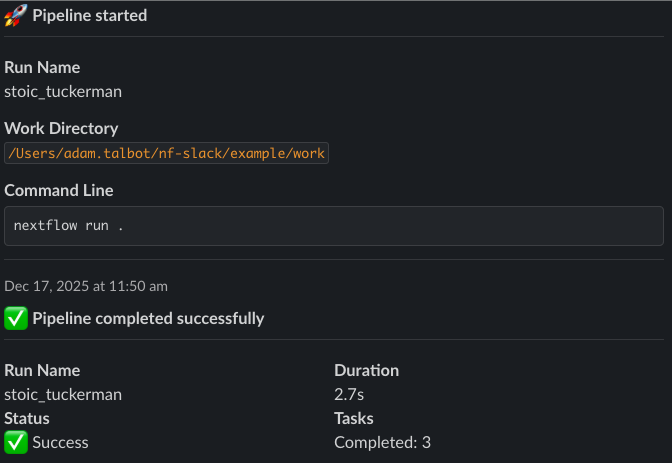
5. Run Your Pipeline
You'll receive Slack notifications when your pipeline starts, completes, and fails.
Next Steps
- Usage Guide — Customize notifications, enable threading, send messages from code
- Examples — Copy-paste configurations for common scenarios
- API Reference — Complete configuration reference